Detailed guide For WhatsApp API Restrictions, Rejections & Account Issues and ways to troubleshoot using Meta Business Support Home troubleshooting - Request a Review of the issue
What is 'Request a Review'?
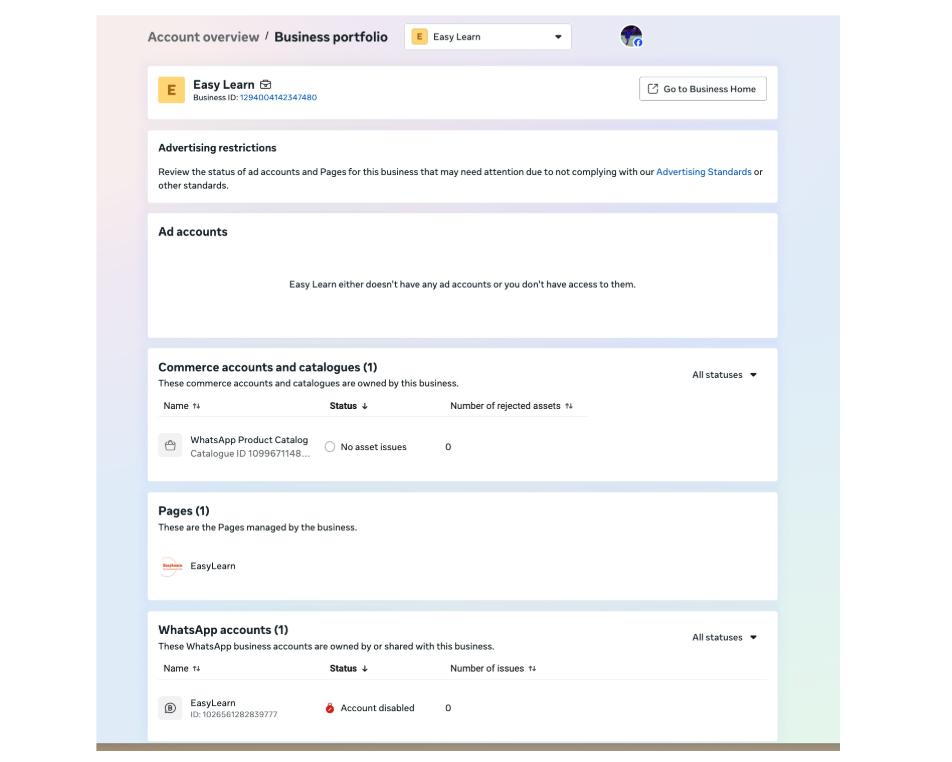
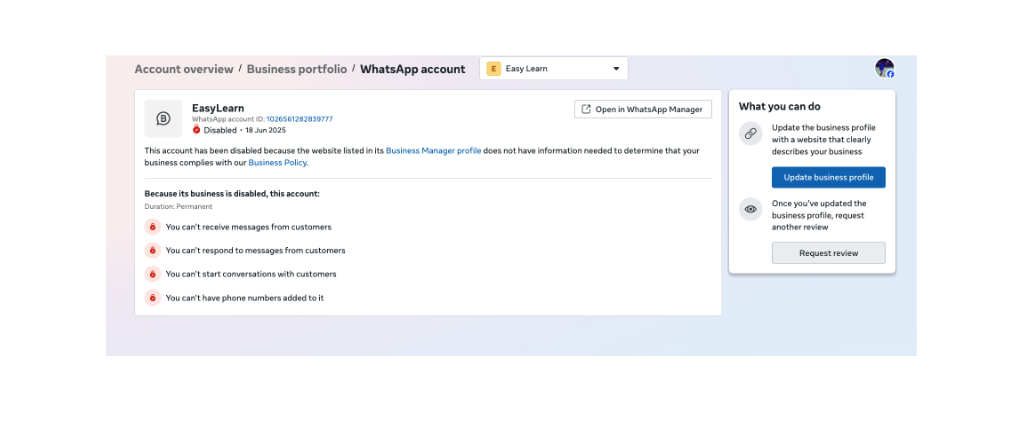
When Meta restricts, disables, or rejects any part of your WhatsApp Business Account (WABA) - whether it's your account, a message template, or your phone number's quality rating - you have the right to formally dispute or appeal that decision through the Meta Business Support Home.
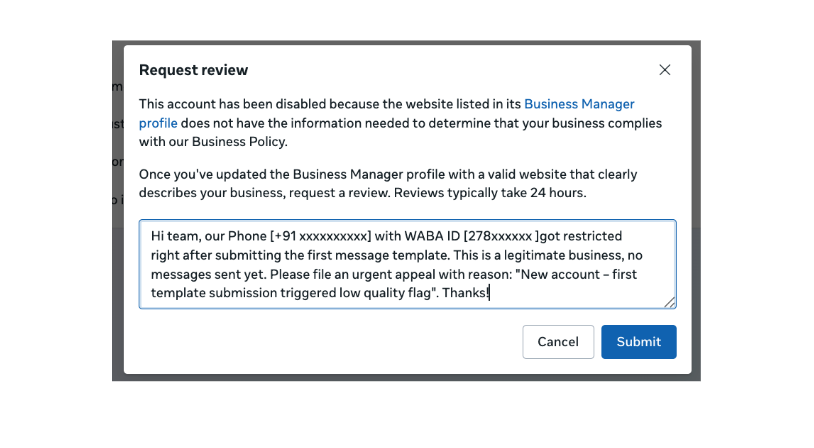
A 'Request a Review' is an official appeal process built into the Meta Business Manager platform. It allows WhatsApp API users and businesses to:
Challenge incorrect restrictions or policy enforcement decisions
Provide context and corrective evidence to Meta's review team
Restore access to messaging, templates, or full account functionality
Prevent escalation from a warning state to a permanent ban
💡
Not all restrictions are final. Many can be reversed with the right approach - a clear explanation, honest acknowledgment, and documented corrective actions. The review process is your best and often only channel to communicate directly with Meta.
Types of Common Issues - Restrictions & Rejections
WhatsApp API accounts can face restrictions across several categories. The table below outlines the most common issues by category, sub-category, and the key reason Meta typically flags them.
Category
Sub-Category
Key Reason for Restriction / Rejection
Account-Level
Sending Spam
High block/report rate from recipients; bulk messaging to non-opted-in contacts.
Account-Level
Account Disabled / Banned
Severe or repeated policy violations flagged by Meta's automated systems.
Account-Level
Policy Violation
Promoting restricted categories: pharmaceuticals, financial products, adult content, weapons, etc.
Account-Level
Phone Number Banned
Number directly reported or associated with prior banned accounts or WABAs.
Account-Level
WABA Suspended
Business verification failure, legal non-compliance, or linked to a flagged payment account.
Template
Template Rejected
Misleading content, prohibited language, missing opt-out, or incorrect variable usage.
Template
Template Paused
Excessive negative feedback (blocks/reports) from recipients after sending.
Template
Template Disabled
Multiple rejections or repeated policy violations on the same template.
Template
Category Mismatch
Template approved as Utility but used for Marketing (or vice versa), triggering a reclassification.
Number & Quality
Quality Rating - Low (Red)
High opt-out / report rate; low engagement; recipients blocking the number frequently.
Number & Quality
Messaging Tier Downgrade
Consistently low quality scores push the number from a higher daily limit tier to a lower one.
Number & Quality
Number Flagged
Number under active review; further restrictions pending unless quality improves.
Business Verification
Verification Rejected
Submitted documents don't match Meta Business Manager records or are deemed invalid.
Business Verification
Display Name Rejected
Name doesn't reflect the registered business, uses generic terms, or violates naming policy.
Business Verification
Green Tick Denied
Insufficient brand presence, unverified business, or ineligible business category for OBA status.
Payment & Billing
Ad Account / Payment Flagged
Unpaid dues, disputed transactions, or fraud signals on the linked Meta payment method.
Payment & Billing
Billing Dispute
Outstanding invoice or chargeback causing WABA access to be suspended by Meta.
Onboarding & Registration
Number Ineligible for API
Number stuck in a broken Coexistence or prior registration state; ghost session on Meta's backend.
Onboarding & Registration
Embedded Signup Rejected
Mismatch in business details, unverified phone number, or incomplete onboarding flow.
Onboarding & Registration
BSP Migration Failure
Improper offboarding from previous BSP leaves lingering WABA linkage; causes conflict on re-registration.
Suggested Review Request Formats
Below are ready-to-use templates for the most common restriction types. Fill in the bracketed sections with your actual details before submitting. Honesty and specificity significantly improve your chances of a favorable review.
Account-Level Issues
1. Account Restricted - Sending Spam
📋 Template: Account Restricted - Sending Spam
To: WhatsApp Business Support
Subject: Review Request - Messaging Restriction on [Your Number]
Account Details:
• Phone Number: [+XX XXXXXXXXXX]
• WABA ID: [Your WABA ID]
• Business Name: [Your Business Name]
We acknowledge that our recent messaging activity triggered Meta's spam detection policy.
We take full responsibility for the lapse in compliance.
What Happened:
[Briefly describe - e.g., We sent a broadcast to a list that included non-opted-in
contacts, resulting in a higher-than-acceptable block and report rate.]
Corrective Actions Taken:
• Audited and cleaned contact list - removed all non-opted-in contacts
• Implemented double opt-in for all future subscribers
• Revised templates to ensure relevance and value
• Added unsubscribe instructions to all outbound messages
• Trained team on WhatsApp Business Policy
We respectfully request a review of this restriction.
Best regards, [Name] | [Business Name] | [Email]
2. Account Disabled / Banned by Meta
📋 Template: Account Disabled / Banned
Subject: Account Reinstatement Request - WABA ID [XXXXX]
We are writing to appeal the disabling of our WhatsApp Business Account.
Account Details:
• Phone Number: [+XX XXXXXXXXXX]
• WABA ID: [Your WABA ID]
• Business Name: [Your Business Name]
We were not aware of the specific violation that triggered this action.
We have reviewed Meta's Commerce Policy and Business Messaging Policy in full.
Steps Taken:
• Reviewed all message templates and removed any non-compliant content
• Verified our contact database for proper opt-in records
• Implemented internal compliance review before any future campaign
We respectfully request account reinstatement and are committed to full compliance.
A well-crafted review request significantly increases your chances of a successful appeal. Chakra Chat advises all customers to follow these practices:
Honesty first: Be honest about what happened
Meta can see your delivery data, opt-out rates, and message logs. Blaming technical errors when the data shows policy violations will hurt your case.
Own the issue: Acknowledge the specific violation
Use language like 'We acknowledge that our messaging activity resulted in...' rather than generic denials.
Show the fix: Be specific about corrective actions
Vague commitments like 'we will be more careful' are less effective than concrete steps: 'We implemented double opt-in and removed 3,400 non-consenting contacts.'
Don't over-appeal: Submit once and wait
Multiple review submissions for the same issue can delay the process and signal desperation. Submit once with complete information.
Always identify your account: Include your WABA ID and number in every request
Meta handles millions of accounts. A missing WABA ID or number means slower routing to the right team.
💡
Our team actively assists customers in drafting review requests, escalating to Meta Business Support, and navigating account quality issues. If your account has been restricted or your templates rejected, reach out to your Chakra Chat account manager - we'll work through it together. Don't attempt re-registration or number migration without consulting us first, as improper steps can complicate recovery.
Frequently Asked Questions
How long does a review take?
Timelines vary by issue type:
Template rejection appeals: 24 - 72 hours
Account restriction reviews: 3 - 7 business days
Business verification: 5 - 10 business days
Account ban or WABA suspension: 1 - 4 weeks (may require Meta escalation)
Onboarding/registration ghost sessions: 3 - 7 business days after Meta clears the backend
What if the review is rejected - can I re-appeal?
Yes, in most cases. However:
Wait at least 30 days before re-appealing the same issue.
Resubmit only if you have new information, additional evidence, or can demonstrate further corrective actions.
For severe bans, a direct Meta Business Support ticket via your BSP may be more effective than the self-serve review flow.
Will my chat history be lost if I migrate to a new number?
No. WhatsApp chat history is stored on the device, not on the WABA or API. If you migrate to a new API number, your historical conversations remain on the device they were received on. Your new number will start with a clean API inbox.
Can I continue messaging while a review is pending?
It depends on the restriction type. If your account is fully disabled, messaging is blocked. If only a template is paused, other approved templates can still be used. If your number is in a 'flagged' state, messaging may be restricted to lower daily limits until resolved.
Should I switch BSPs while a review is pending?
No - Chakra Chat strongly advises against switching BSPs during an active review or restriction period. Migrating mid-review can create additional registration conflicts and may reset your compliance history on Meta's side, making recovery harder.
Still looking for an ideal solution for WhatsApp engagement? Don't look further